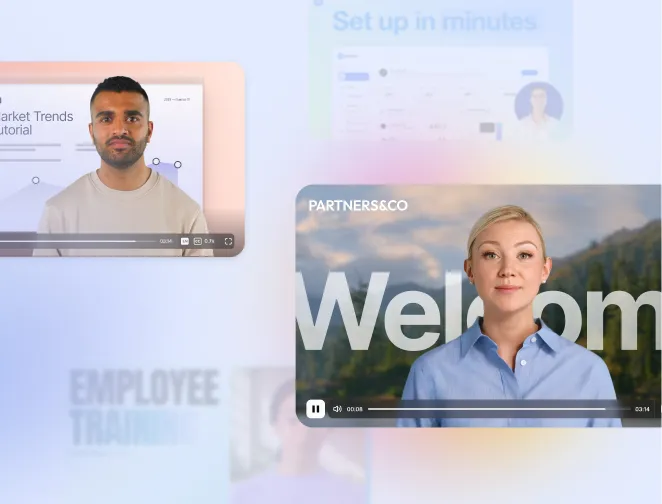




Create AI videos with 240+ avatars in 160+ languages.
Convert Word documents into engaging AI videos in 160+ languages.
I often find myself staring at documents that no one wants to read.
If that sounds familiar, you're not alone. Many teams face a similar problem, and need a way to turn dense text into content people actually finish.
Synthesia lets you convert Word documents (as well as PowerPoint slides, PDFs, webpages and more) to video in minutes.
The video is then fast to update, easy to localize, and consistent with your brand, and the results look super professional.
How to convert your Word documents into an engaging AI video
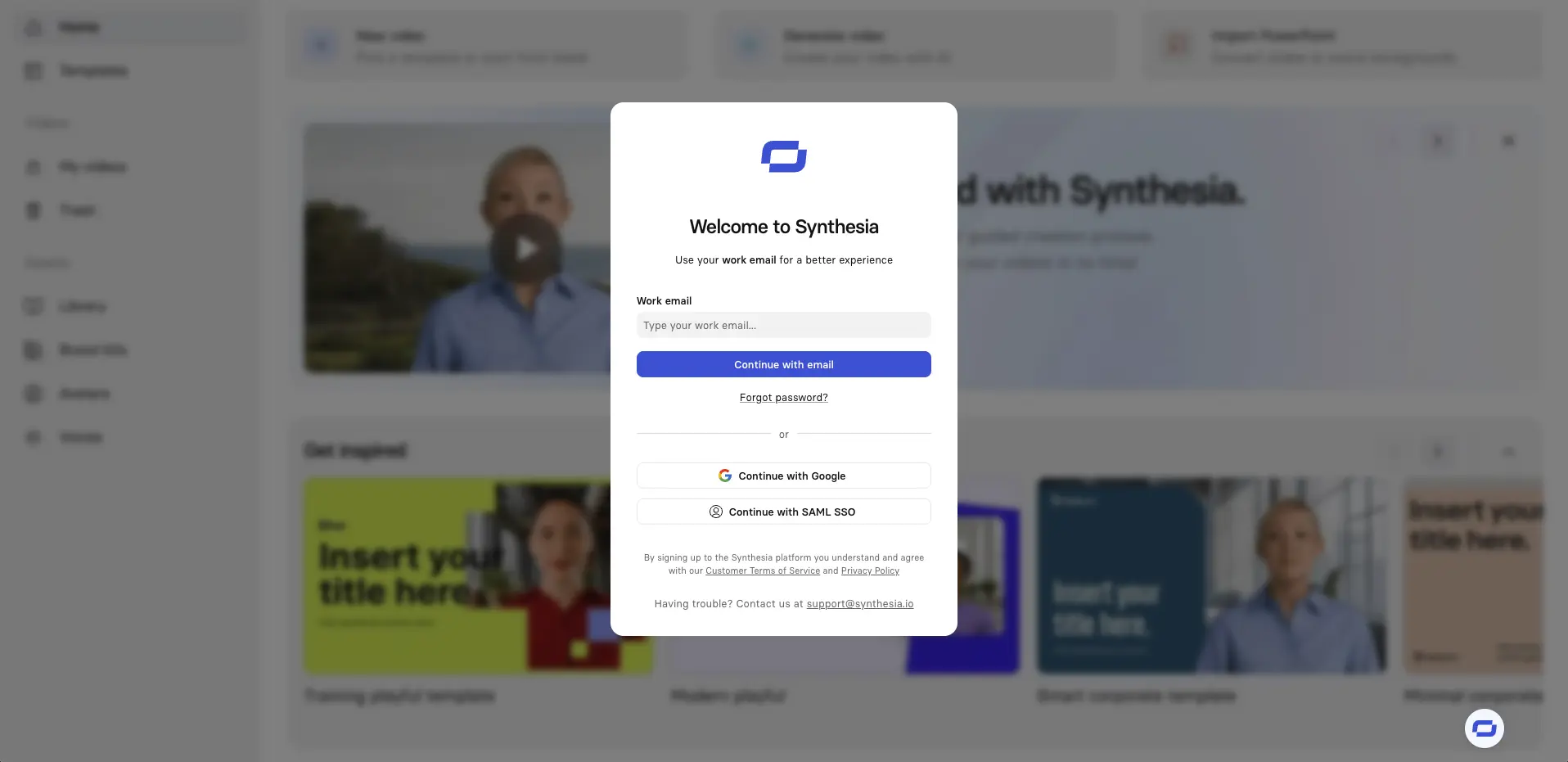
Step 1: Login to Synthesia
Click here to log in or to sign up for a free account.
Step 2: Select create with AI from the homepage
From the top of the Synthesia homepage, click Create with AI.
You can upload Word documents with up to ~50 pages, but it's best to break content into a series of 2–6 minute videos for retention. Your audience will thank you for respecting their time and attention spans.

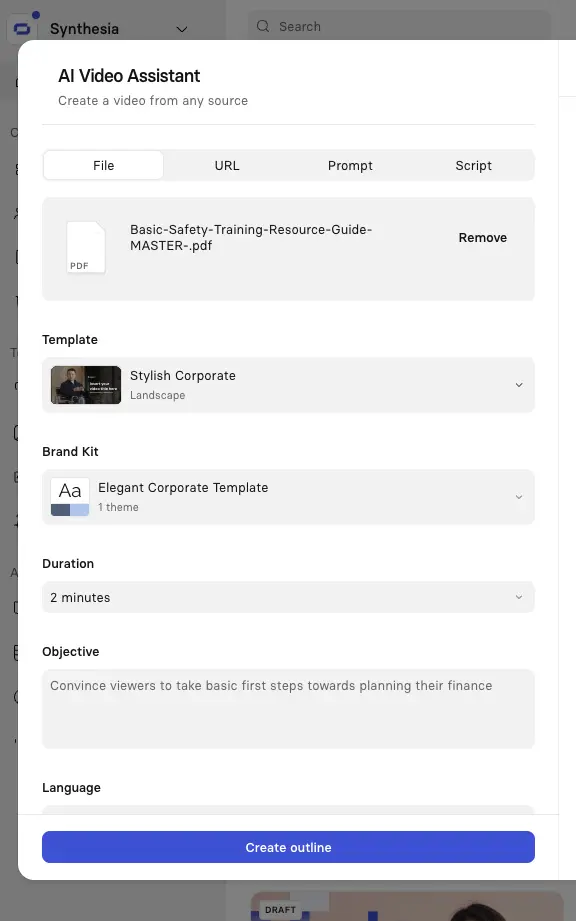
Step 3: Upload your Word document
You can also upload PDFs, PowerPoint slides, text files, a URL, a video script, or provide a simple prompt.
Next, select a template that matches your video style and adjust settings such as video duration, objective, and language.
Synthesia's brand kit feature is useful for maintaining consistency across multiple videos. You can upload your company colors, fonts, and logo once, then every video automatically matches your brand guidelines.
Step 4: Outline your video
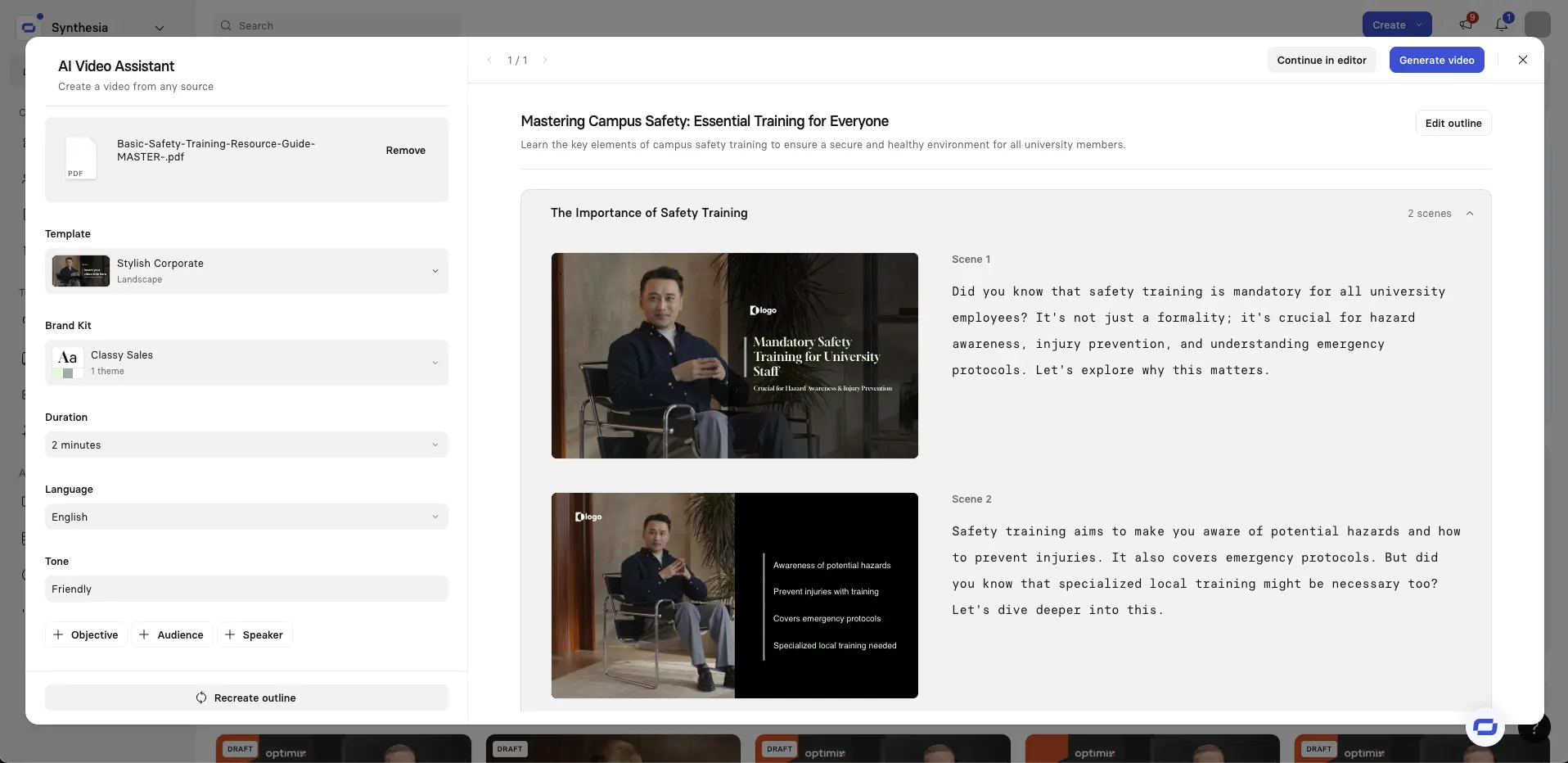
After uploading my document, Synthesia analyzes the content and automatically breaks it into logical scenes.
You’ll now see an overview of your video’s scenes along with a draft script for each one.From here, you can add, remove, or edit scenes, or recreate the outline entirely.
I always review the suggested structure and make adjustments. I'll check that there's one idea per scene, merge any scenes under 10 seconds, and split anything over ~30 seconds.
Sometimes I'll combine shorter scenes or break up longer ones for better pacing
For longer videos I recommend you add chapters so viewers can jump to sections. It's a small step that boosts watchability.
When you’re ready, click Continue in editor.
Step 5: Edit your video
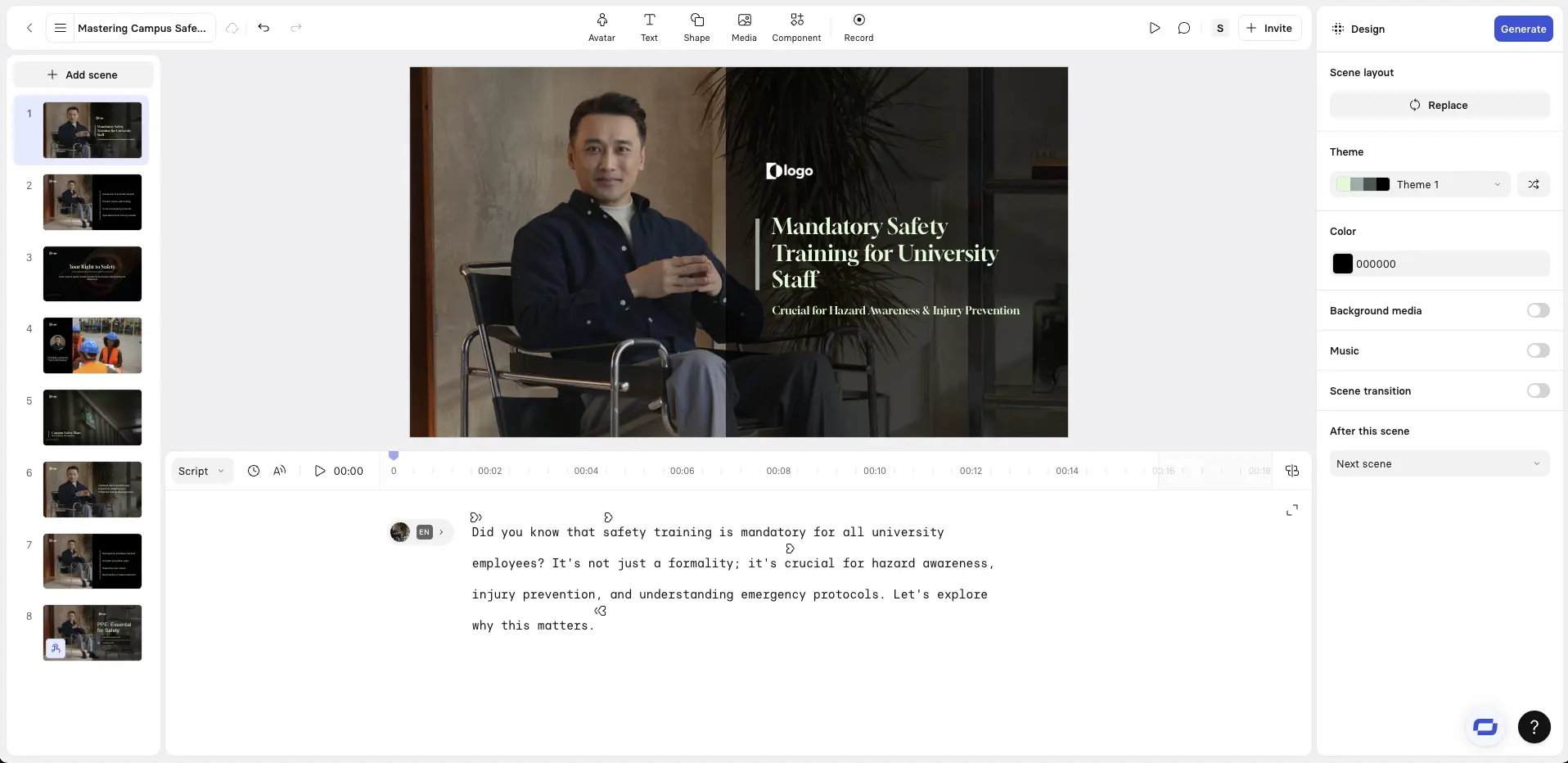
Now it's time to edit your video. You can review your scenes, refine the script, and assemble all multimedia elements into a complete video.
Here's some tips when making your edits:
- Visual hierarchy constraints: Limit on-screen text to a headline and 1–3 bullets. The narration should carry the detail.
- Dynamic captions: Turn on dynamic captions and style them to your brand. They help retention and support viewers watching without sound.
- Media upload usage: Upload quick screen recordings or 10 second b-roll to match each key step. Keep visuals literal and close to what's being said.
I've developed a habit of previewing each scene after editing it. This helps me catch awkward phrasing or pacing issues before generating the final video.
I'll also try to add short pauses between key points, as I find it makes the narration sound more natural and gives viewers time to absorb information.
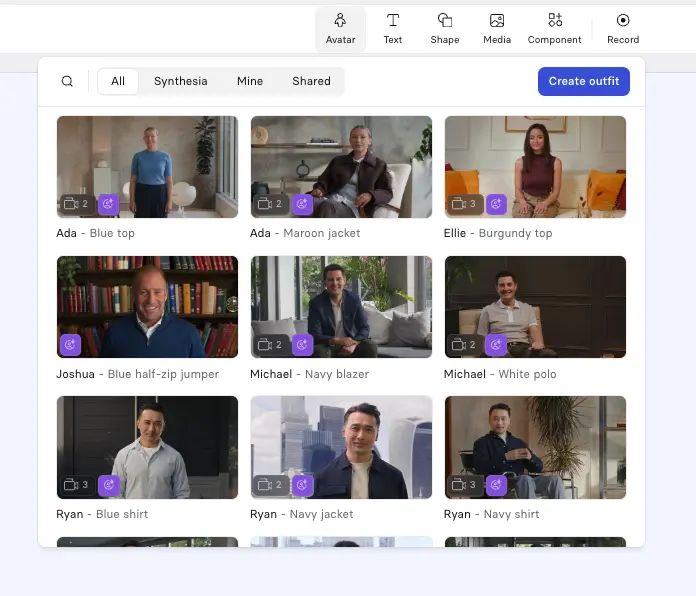
Choose an AI avatar and voice
You can select from a wide range of AI avatars, AI voices, languages, and accents to match your audience and context.
I like to vary the avatar placement (left/right/corner) and size between scenes to reset attention without distracting motion.
The voice selection is equally important. I've found that matching the accent to your primary audience increases engagement.
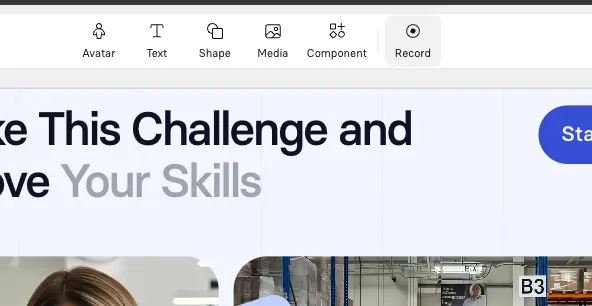
Add screen recordings
Use Synthesia’s AI screen recorder for software tutorials and walkthroughs. A common layout pairs a talking-head avatar with a screen recording, with the avatar on one side and the screen on the other.
Add B-roll
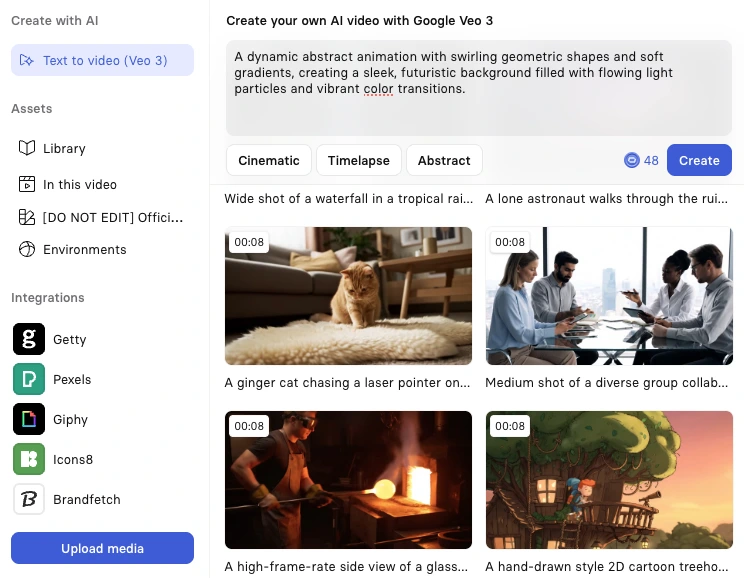
B-roll helps break up long talking-head sections and keeps videos visually engaging. In Synthesia, you can place clips between sections or layer them behind your avatar or voiceover to reinforce key points.
B-roll works well for showing real-world examples, people performing tasks, or visuals that support the narration. You can generate clips with AI video models like Sora or Veo, upload your own footage, or use Synthesia’s built-in stock library.
Step 6: Generate your video
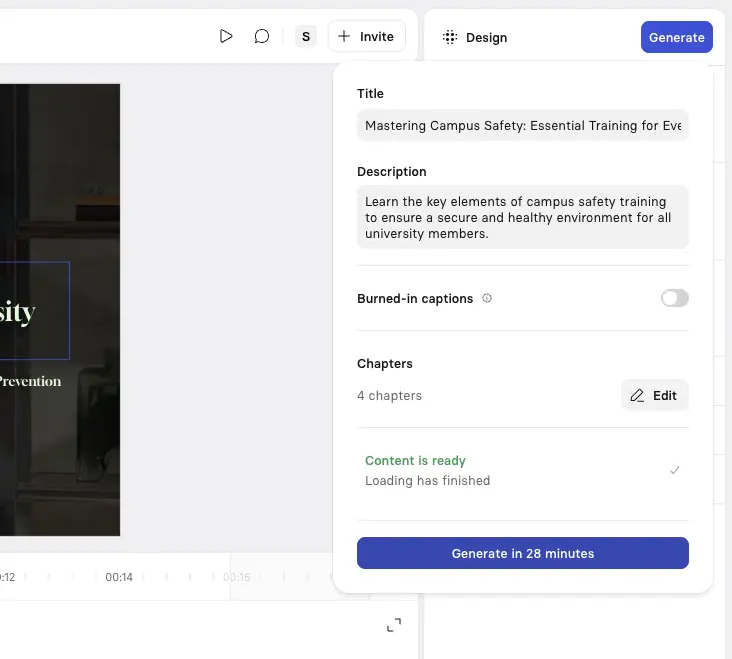
Click Generate in the top-right corner to create your video. You can then download your video as an MP4, get a shareable link, embed your video on a webpage, or download a SCORM version of your video and upload it to your LMS.
Step 7: Publish and share your video
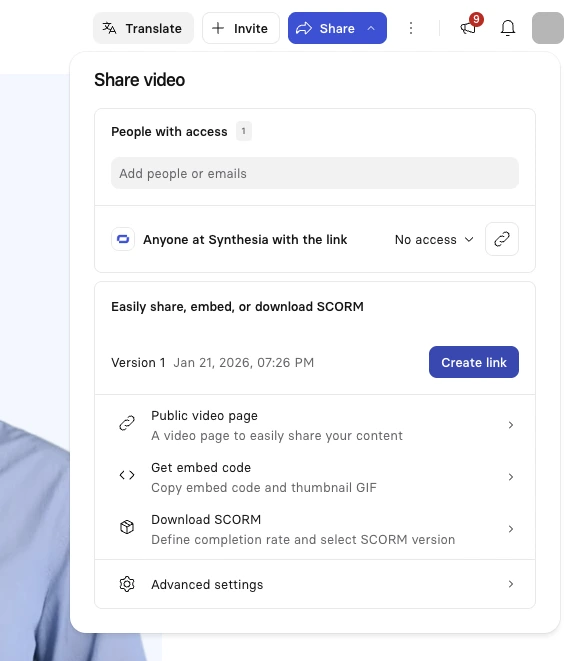
The final step is to publish and share your video.
Synthesia lets you export your video as an MP4 file, or publish it within the platform, allowing you to embed the video wherever it’s needed.
Ready to transform your documents?
If you have Word documents gathering digital dust because no one wants to read them, here's what I recommend: start with your most important but least-read document—probably a training manual, process guide, or FAQ.
Use the preparation steps I outlined to transform it into a conversational script, then follow the Synthesia workflow to convert your Word document to video.
About the author

Video Editor
Kyle Odefey
Kyle Odefey is a London-based filmmaker and content producer with over seven years of professional production experience across film, TV and digital media. As a Video Editor at Synthesia, the world's leading AI video platform, his content has reached millions on TikTok, LinkedIn, and YouTube, even inspiring a Saturday Night Live sketch. Kyle has collaborated with high-profile figures including Sadiq Khan and Jamie Redknapp, and his work has been featured on CNBC, BBC, Forbes, and MIT Technology Review. With a strong background in both traditional filmmaking and AI-driven video, Kyle brings a unique perspective on how storytelling and emerging technology intersect to shape the future of content.



How do I convert a Word document into a video?
Converting a Word document into a video with Synthesia starts with uploading your document to the AI video assistant feature. The platform automatically analyzes your content and breaks it into logical scenes, transforming your text into a structured video outline. You can then customize every aspect by choosing from over 240 AI avatars, selecting voices in 140+ languages, and adding your brand elements, images, or video clips.
The entire process typically takes just a few minutes from upload to final video generation. This approach transforms static documents that often go unread into engaging visual content that viewers actually complete, with users reporting up to 64% higher engagement rates compared to text-only materials.
How should I format my Word document so Synthesia can turn it into clear, engaging scenes?
Structure your Word document with clear headings that map directly to video scenes, keeping one main idea per section. Transform formal documentation language into conversational scripts by writing as if you're speaking directly to your audience. For example, instead of "employees must complete form A-12," write "First, you'll need to fill out the A-12 form, which takes about two minutes."
Break dense paragraphs into bite-sized chunks and add visual cues in brackets like "[show screenshot of dashboard]" to guide the AI in creating relevant visuals. Since spoken narration averages 100-130 words per minute, aim for 300-500 words for a 3-4 minute video. This formatting approach helps the AI create videos that maintain viewer attention and improve information retention.
Can I add an AI avatar and choose a voice (accent and tone) when creating a video from my Word document?
Yes, you can select from over 240 AI avatars and customize their placement, size, and appearance throughout your video. The voice selection includes multiple accents and languages, allowing you to match the voice to your primary audience for better engagement. You can choose American, British, or Australian English accents, among many others, and even adjust pronunciation for technical terms or acronyms through the pronunciation dictionary feature.
This customization ensures your video feels authentic and connects with your specific audience. Many users vary avatar positions between scenes and select voices that match their regional teams, creating a more personalized viewing experience that significantly improves content completion rates.
What business impact can I expect from turning Word-based training or manuals into AI videos?
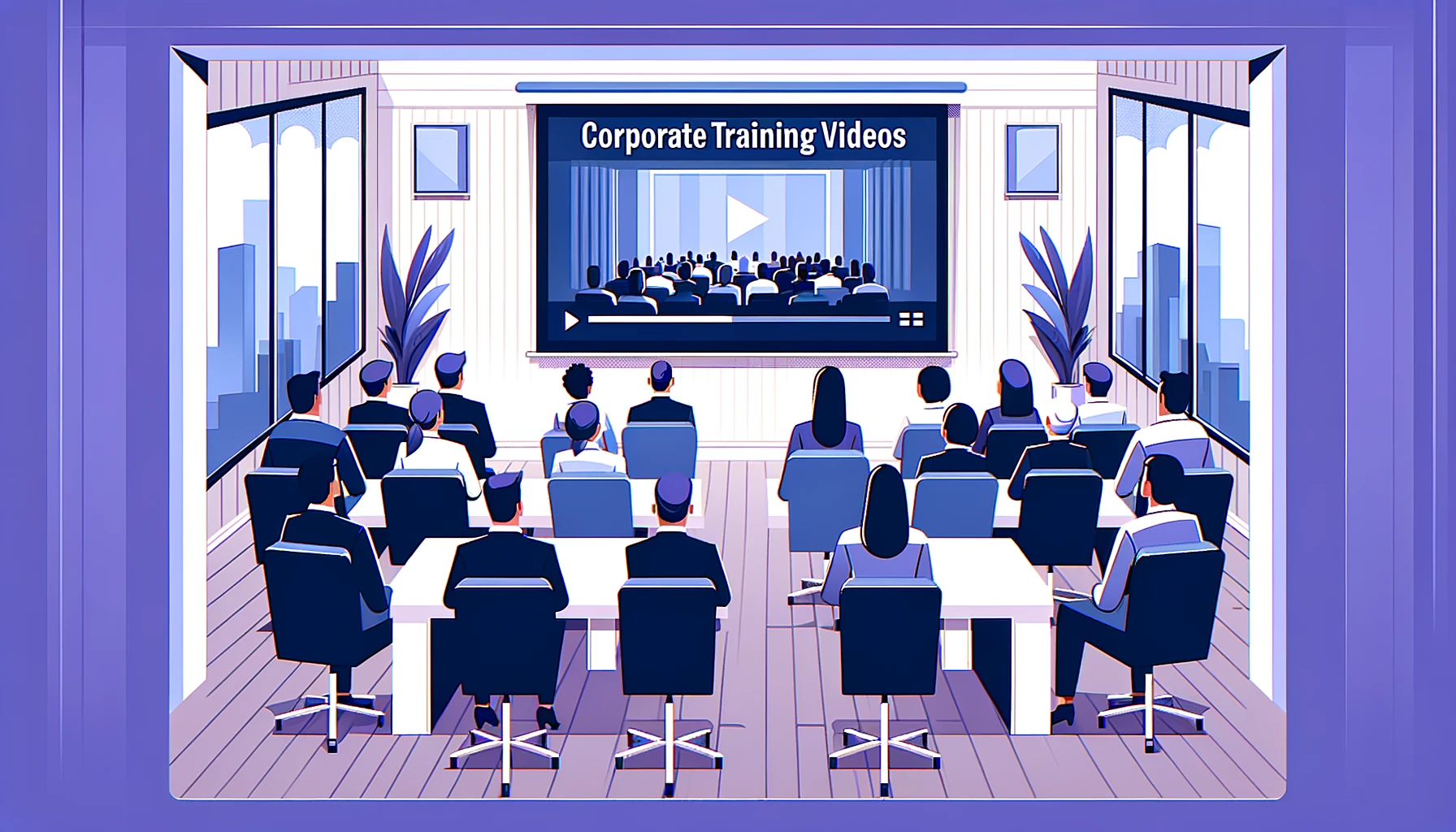
Organizations typically see dramatic improvements in engagement and efficiency when converting Word documents to video. Common results include 50% reduction in follow-up questions from new hires, 40% faster time-to-productivity for new team members, and 3 hours per week saved on repetitive training sessions. These improvements stem from video's ability to demonstrate complex processes visually while allowing viewers to pause, replay, and learn at their own pace.
The business impact extends beyond metrics to practical benefits like easier content updates (just edit and regenerate specific scenes), instant localization for global teams, and consistent delivery of important information. International team members particularly benefit from captions and visual demonstrations that make content more accessible than dense text documents.
Can I add captions or instantly translate the video into other languages for global teams?
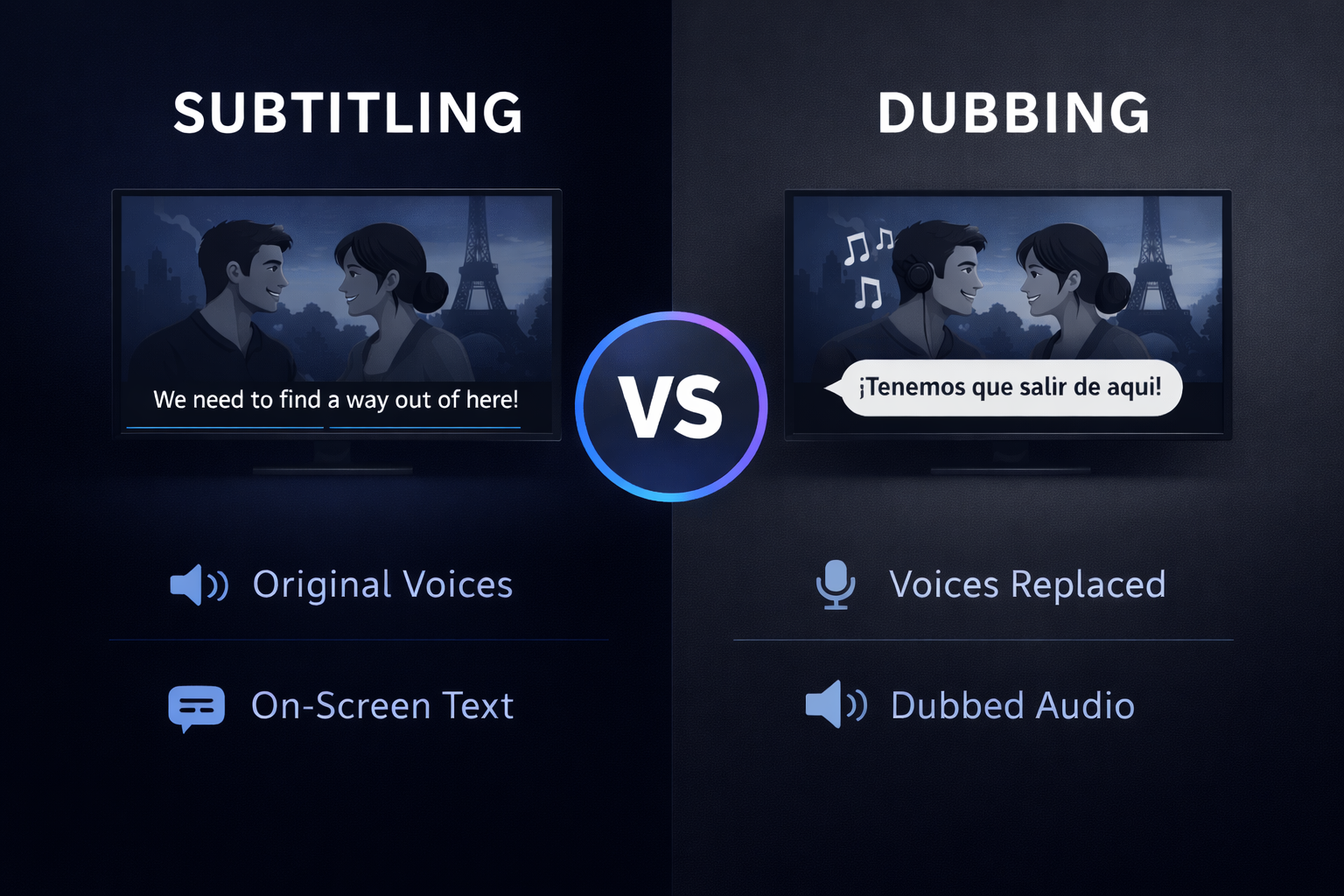
Synthesia enables automatic caption generation and one-click translation into 140+ languages, making it simple to create accessible content for global teams. You can generate multiple language versions from a single master video, maintaining the same avatar, timing, and visual elements while only changing the voice and captions. The platform allows you to preserve brand-specific terms that shouldn't be translated, ensuring consistency across all versions.
Adding captions improves accessibility for all viewers and supports those watching without sound, which is increasingly common in modern workplaces. This localization capability transforms what traditionally required separate production for each language into a streamlined process that takes minutes instead of weeks, helping organizations communicate effectively across language barriers.